Connecting Claude Cowork
Four steps to connect it, three more to fill it. The same steps work in Claude itself; the menus sit in the same place.
-
Get your address from Job Deck
Sign in to the board, open Settings and choose New connection. You get a private web address. It is shown once and never again, so copy it before you leave the page. Lose it and you make another; the old one stops working.
-
Open Settings in Cowork
Click your account at the bottom of the left sidebar, then Settings.
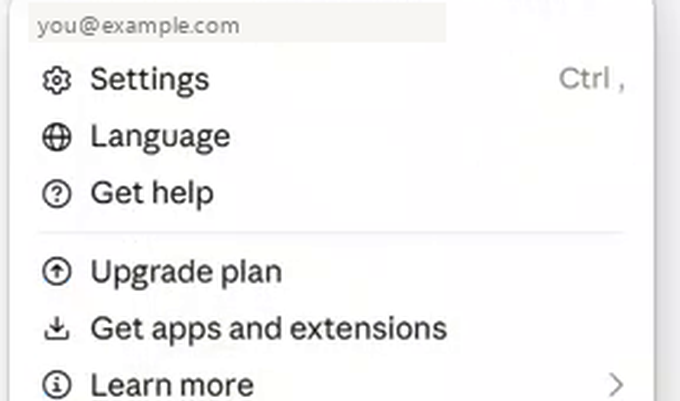
Your account, bottom left, then Settings. -
Go to Connectors and press Add
Connectors is in the left column of Settings, under Customize. The Add button is the black one in the top right.
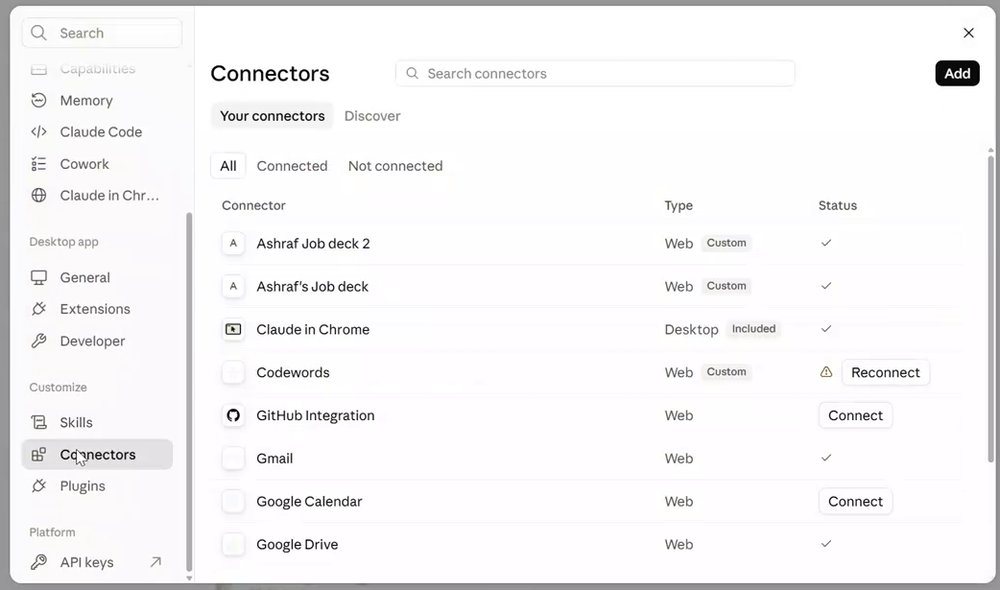
Anything already connected is listed here. Job Deck will join them. -
Fill in two fields
That is the whole form. There is nothing else to set and nothing to switch on.
- NameJob Deck
- MCP server URLthe address Job Deck gave you
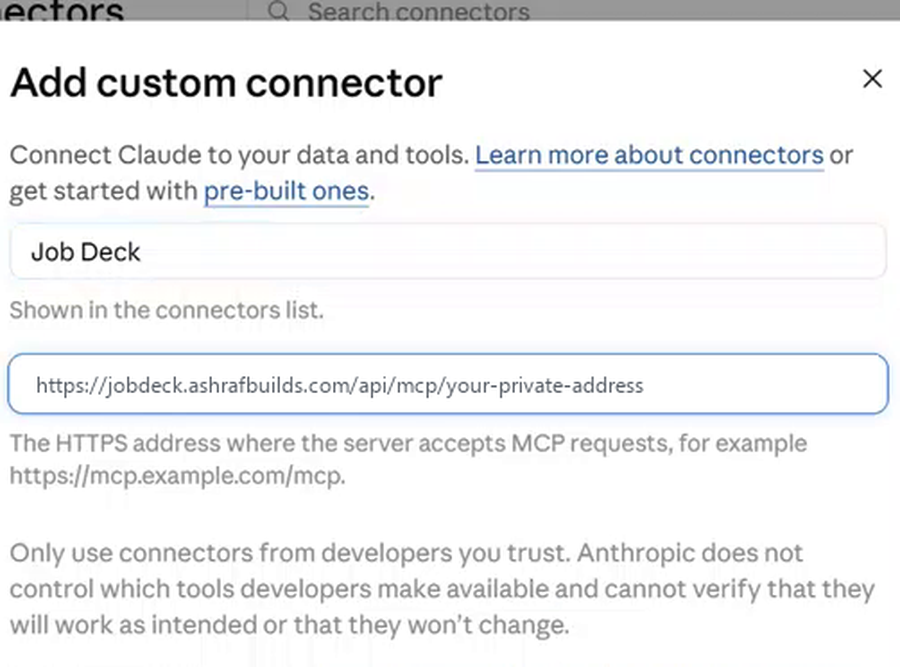
Both fields filled, then Continue. -
Paste in the prompt Job Deck wrote you
Answer three questions on the board and it writes a prompt built around your own sources and dates. Paste that into a new chat and it does the work: it connects your inbox, reads your alerts, and finds the real apply link for every role, on the job site or the employer's own careers page. It does that whether or not you are signed in anywhere, because a job advert is public.
It only comes back to you for what it genuinely cannot do, like approving access to your inbox. If it says it cannot reach the board, the address was pasted short — make a new one rather than guessing at the old one.
-
If you want it more personalised, sign in to your job sites
The alert emails a job site sends you are a step less personalised than your account on that site. Sign in to each site from the built-in browser — Claude in Chrome, in the Connectors list above — and it picks up your saved roles and the recommendations made for you.
Optional. If you do not sign in, it uses the saved-jobs emails those sites send instead.
-
Refresh the board
The roles are there. Give each group a keyword or two so new arrivals file themselves, and ask it "what came in overnight?" whenever you like. Run the whole thing daily if you want — a role you already have is never duplicated, and your notes stay yours.